Avatar Accessories: Check the Attachment Before Adjusting the Shape
A hat or prop can look correctly placed while following the wrong part of the avatar. Verify the supported attachment, then review position, movement and fit in the target workflow.
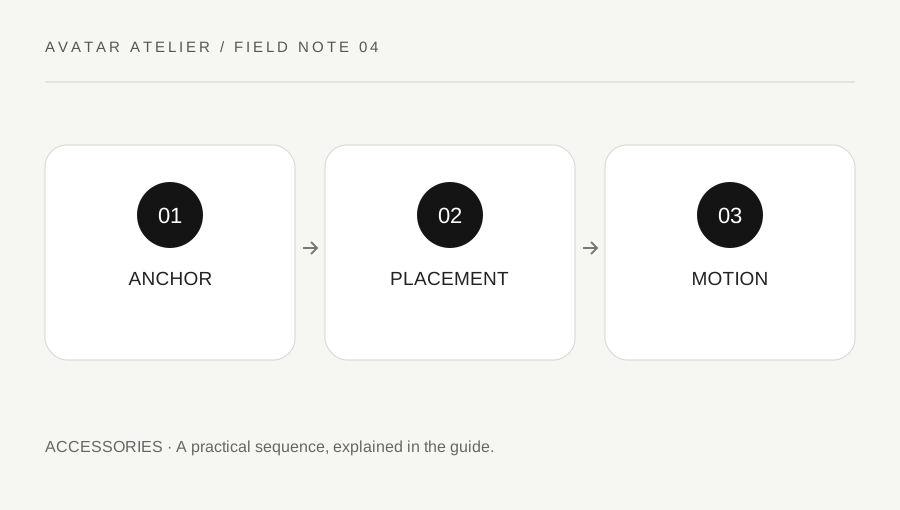
Original explanatory diagram. Examples illustrate a method or decision; they are not claims of personal testing.
Identify the asset type and intended anchor
Read the target tool's current accessory documentation and identify how the component is meant to attach. VRoid's XWear accessory guidance, for example, distinguishes accessories from costumes partly through supported follow behavior. Roblox uses its own attachment and testing workflow. These systems should not be treated as interchangeable file conventions.
Record the intended body part, asset version and permission to modify it. Do not reposition a third-party component and redistribute it without checking the actual license. A file being technically loadable is not the same as a supported or authorized use. Keep the source and the edited working copy distinguishable.
Check the anchor before cosmetic placement
Use the tool's supported controls to inspect which part the accessory follows. A placement that appears correct in a neutral pose can reveal the wrong attachment during movement. Do not compensate for a wrong anchor with an extreme scale or offset. Solve the structural question first through the platform's instructions.
Then assess position, rotation and scale in a consistent neutral view. Keep the intended design clear: a deliberately oversized hat is different from a misaligned attachment. Record each change so the result can be reproduced. Avoid copying another platform's coordinate assumptions or attachment names without confirming the target workflow.
Use the destination’s testing tools
Roblox's Accessory Fitting Tool and Avatar Setup documentation describe preview and testing routes across bodies, accessories and animations. Use the applicable supported workflow rather than judging only the modeling application's viewport. For another platform, use its own equivalent process and do not promise identical behavior from a shared-looking file extension.
Imagine a wrist accessory sits correctly at rest but stays behind during an arm movement. The creator checks the supported follow or attachment setup before reshaping the mesh. After correction, they repeat the same neutral and movement checks. This is an illustrative diagnosis sequence, not a universal fix or a claim that every accessory supports every avatar body.
Review fit and publication boundaries
Inspect intersections with clothing, hair and the body in the intended ordinary poses. Check current validation and publication requirements before uploading, using the responsible account and permitted assets. Do not bypass validation or assume an accepted preview proves marketplace eligibility. Roblox's documentation describes validation as a separate platform process.
Keep the tested body types and states in a short note. Label unsupported or untested combinations honestly. A useful accessory handoff includes the intended attachment and known scope, not just a screenshot of a neutral pose. The goal is predictable supported behavior and an accurate account of what was actually reviewed.
Keep removable and permanent parts clear
If the project offers optional accessories, test the avatar both with and without them where supported. Removing a component should not accidentally leave a hidden dependency or an unexplained missing material. Use the target tool's intended controls and keep the source version available. This small optional-state check can catch a problem that a fully dressed reference image conceals, while also making the delivered configuration easier for another authorized user to understand.
Inspect an ordinary opposite-side movement as well as the first convenient pose. A wrist or shoulder accessory can look correct when an arm hangs down and expose a placement issue when the supported animation changes direction. Keep the test modest and repeatable. If an optional component is removed, confirm that the remaining avatar still displays and moves as intended through the same supported target workflow.
A practical checklist
Choices are saved in this browser. Reset them here or clear this site’s browser storage.
Questions that come up
Does correct neutral placement prove the anchor is right?
No. Test movement and confirm the supported attachment or follow setting.
Are VRoid and Roblox accessory systems interchangeable?
No. Use the current workflow and format requirements for the actual target.
Does a successful preview guarantee publication?
No. Validation, permissions and platform requirements remain separate checks.
References & scope
Background references checked on 18 October 2026. Worked examples and diagrams are original teaching material.